
A computer is made up of two main parts: hardware and software.
- Hardware refers to the physical components you can touch, such as the monitor, keyboard, and motherboard.
- Software refers to the programs and instructions that tell the hardware what to do.
Without hardware, software would have no machine to run on. Without software, hardware would be useless. Together, they make computers powerful tools for learning, working, and entertainment.
In this guide, we’ll take a deep dive into computer hardware components, their types, features, history, and real-world applications.
What is Computer Hardware?
Computer hardware refers to the physical parts of a computer system. These parts include the processor, memory, input/output devices, storage, and other internal components.
👉 Analogy: Hardware is like the human body (organs, muscles, bones), while software is like the brain and thoughts that control the body.
Examples of hardware: Keyboard, mouse, monitor, CPU, hard drive.
The IPO Model: How Hardware Works
Every computer works on the Input → Process → Output → Storage (IPOS) cycle.
- Input: Data is entered into the computer using input devices.
- Processing: The CPU processes the data.
- Output: Results are shown using output devices.
- Storage: Data is stored for future use.
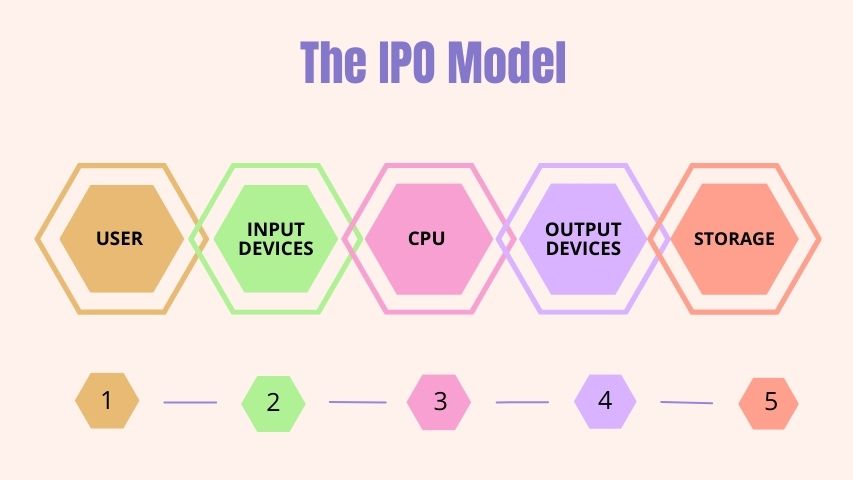
This simple flow explains how hardware components interact.
Types of Computer Hardware Components
Computer hardware can be divided into several categories:
1. Input Devices
Input devices are used to enter data and instructions into a computer.
Common input devices:
- Keyboard: The most widely used device for typing text and commands.
- Mouse: A pointing device used to move the cursor and select items.
- Scanner: Converts paper documents into digital format.
- Microphone: Captures sound input.
Additional input devices (detailed):
- Trackball: A stationary device with a ball on top; moving the ball controls the cursor. Often used in design.
- Light Pen: A light-sensitive pen that allows direct interaction with CRT screens.
- OCR (Optical Character Reader): Converts printed or handwritten text into digital format.
- Barcode Reader: Scans barcodes (used in supermarkets and inventory systems).
- Touch Screen: Allows users to interact directly by touching the display.
👉 Example: Typing an email on a keyboard, clicking “Send” with a mouse, and speaking into a microphone for voice typing.
2. Output Devices
Output devices display the results of processing in a human-readable form.
Common output devices:
- Monitor (VDU – Visual Display Unit): Displays text, images, and videos.
- Printer: Produces hard copies of documents.
- Speakers: Produce sound output.
- Projector: Displays visuals on a large screen.
Additional output devices:
- Plotter: Used for printing large-scale engineering drawings or blueprints.
- 3D Printer: Creates three-dimensional objects layer by layer.
👉 Example: Watching a movie on a monitor with sound from speakers.
3. Processing Unit (CPU)
The CPU (Central Processing Unit) is called the brain of the computer. It processes data and controls all operations.
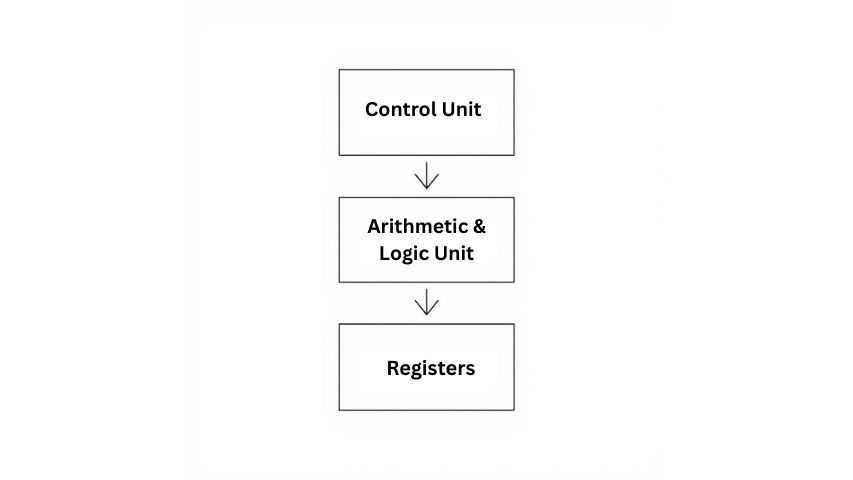
Main parts of the CPU:
- Control Unit (CU): Directs the flow of data.
- Arithmetic Logic Unit (ALU): Performs mathematical and logical operations.
- Registers: Small, fast storage locations inside the CPU.
- Cache Memory: High-speed memory that stores frequently used data.
📊 Diagram – Block Diagram of CPU:
👉 Example: When you use a calculator app to add numbers, the CPU performs the calculation instantly.
4. Storage Devices
Storage devices are used to store data permanently or temporarily.
Types of Storage:
(a) Primary Storage (Memory)
- RAM (Random Access Memory): Temporary memory; data is lost when power is off.
- ROM (Read-Only Memory): Permanent memory; stores boot-up instructions.
(b) Secondary Storage
- Hard Disk Drive (HDD): Traditional storage with spinning disks. Large capacity, slower speed.
- Solid State Drive (SSD): Faster storage with no moving parts. Used in modern laptops.
- Optical Discs: CD, DVD, Blu-ray discs.
- USB Flash Drives: Portable, plug-and-play devices.
- Memory Cards: Used in cameras, smartphones.
(c) Cloud Storage
Modern storage using the internet (Google Drive, Dropbox).
👉 Example: Saving a Word document on your hard drive or uploading it to Google Drive.
5. Motherboard
The motherboard is the main circuit board that connects all hardware components.
Features of a motherboard:
- Holds CPU, RAM, and expansion slots.
- Provides connectors for input/output devices.
- Includes chipsets for communication between parts.
👉 Analogy: Just like roads connect different parts of a city, the motherboard connects different components of a computer.
6. Power Supply Unit (PSU) and Cooling
The PSU converts electricity from the wall into a usable form for the computer.
Cooling Systems:
- Cooling Fans: Prevent overheating.
- Heat Sinks: Absorb and dissipate heat.
- Liquid Cooling (in gaming PCs): Used for advanced heat management.
👉 Example: Like a phone charger ensures correct voltage, the PSU ensures your computer gets the right power.
7. Communication Devices
These components allow computers to connect and exchange data.
Examples:
- Network Interface Card (NIC): Connects to local networks.
- Wi-Fi Adapter: Enables wireless communication.
- Bluetooth Adapter: Connects wireless devices (headphones, keyboards).
- Modem: Connects to the internet via telephone or cable lines.
👉 Example: Browsing the internet using Wi-Fi.
8. Other Internal Components
- Graphics Card (GPU): Handles image and video rendering. Essential for gaming, video editing.
- Sound Card: Produces high-quality audio output.
- BIOS/UEFI Chip: Stores startup instructions for the computer.
Key Characteristics of Hardware
- Tangible: Can be seen and touched.
- Durable: Lasts years if maintained.
- Dependent on Software: Needs software to operate.
- Upgradeable: Components like RAM or GPU can be replaced.
Historical Context of Computer Hardware
- 1940s–1950s: Computers used vacuum tubes.
- 1960s–1970s: Transistors and integrated circuits made computers smaller.
- 1980s–1990s: PCs with floppy disks, CRT monitors.
- 2000s–Present: Modern devices use microprocessors, SSDs, cloud storage, and advanced GPUs.
Real-World Applications
- Education: Students use laptops and projectors.
- Business: Offices rely on desktops, printers, and scanners.
- Healthcare: MRI scanners, patient monitoring systems.
- Entertainment: Gaming PCs with GPUs, VR headsets.
- Government: Secure data servers and communication devices.
Comparison Tables
Input vs Output vs Storage vs Processing
| Category | Purpose | Examples |
|---|---|---|
| Input | Enter data | Keyboard, Mouse, Scanner |
| Output | Display results | Monitor, Printer, Speakers |
| Storage | Save data | HDD, SSD, USB Drive |
| Processing | Process instructions & data | CPU, GPU, Registers |
Hardware vs Software
| Aspect | Hardware | Software |
|---|---|---|
| Nature | Physical components | Programs & instructions |
| Example | CPU, Monitor, Keyboard | Windows OS, MS Word |
| Tangibility | Tangible | Intangible |
| Dependence | Needs software to operate | Needs hardware to run |
Conclusion
Computer hardware components are the building blocks of any computer. They include input devices, output devices, processing units, storage, the motherboard, power supply, and communication devices.
Just like organs in a body, all hardware parts must work together for the system to function smoothly. Understanding these hardware components helps you see how computers process, store, and share information in real life.