
Imagine going to school without your notebook. You may remember a few things your teacher said, but by the next day, most of it would fade away. Now imagine having a school locker where you safely keep every notebook, assignment, and textbook—you can open it anytime and find what you need.
That’s exactly how computer memory and storage work together.
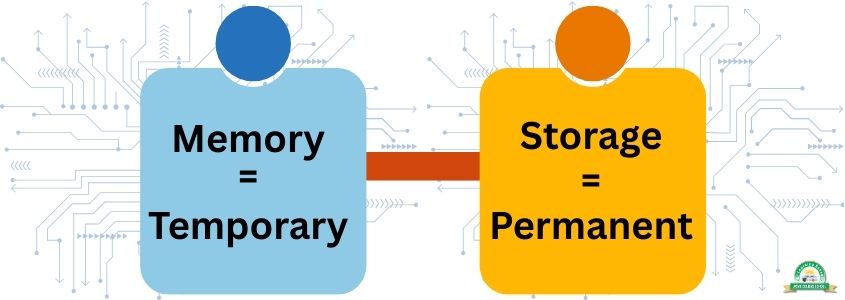
- Memory is like the notebook you use during class—fast, but temporary.
- Storage is like the locker—safe, permanent, and always ready for later.
Whether you’re watching YouTube, playing a game, writing an essay, or coding, your computer uses both memory and storage at the same time. Let’s break these concepts down in a way that’s simple and relatable.

What is Computer Memory and Storage?
- Computer Memory: A temporary workspace inside the computer where data is kept while you are working. Think of it as your short-term memory or your classroom notebook.
- Computer Storage: A permanent place where files, apps, and data are saved. This is your long-term memory, like a school locker.
🔑 Key Point: Without memory, your computer would be slow. Without storage, it would forget everything once switched off.
Types of Memory in a Computer
Just like our brain has different types of memory—short-term memory for remembering today’s lesson and long-term memory for remembering your birthday—a computer also has different types of memory, each with a special role. Together, they make the computer fast, reliable, and ready for different tasks.
Here are the main types of memory you should know:
1. RAM (Random Access Memory)
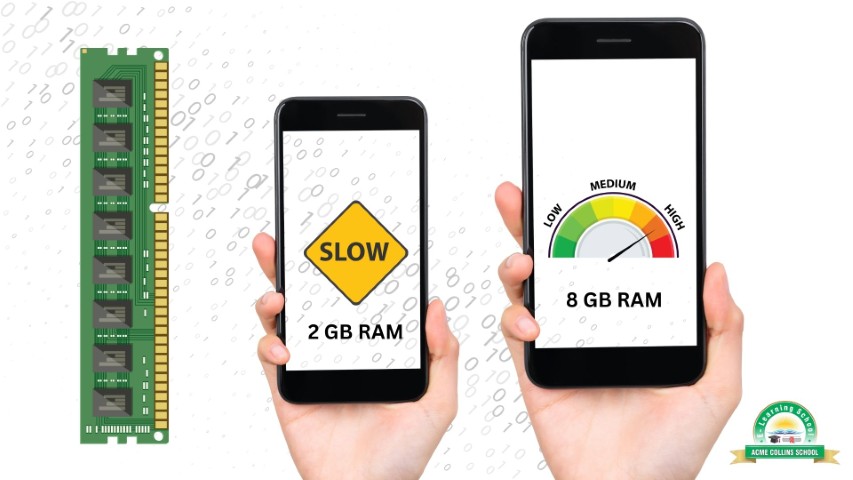
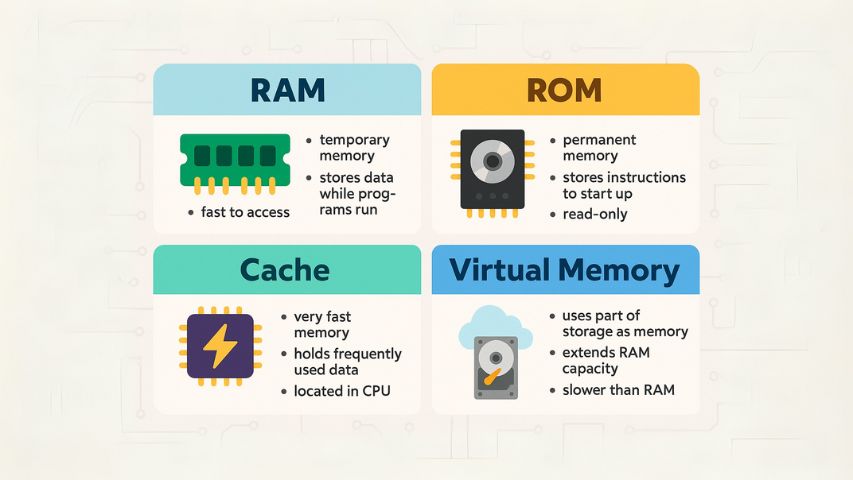
RAM is the short-term working memory of a computer. It temporarily stores data and instructions that the CPU needs right now. It is volatile, meaning everything is erased when the computer is switched off.
- Examples of Use: Running games, using apps, browsing multiple tabs.
- Real-life Example: A phone with 8GB RAM works faster than one with 2GB.
2. ROM (Read Only Memory)
ROM is permanent memory that contains essential startup instructions for the computer. It is non-volatile, so the data remains even when the computer is turned off.
- Use Cases: Storing the BIOS (Basic Input/Output System), which helps the computer boot.
- Real-life Example: When you press the power button, ROM helps the system “wake up.”
3. Cache Memory
Cache is a very small but ultra-fast memory located close to the CPU. It stores frequently used data for quick access, making the processor much faster. Like RAM, it is volatile.
- Use Cases: Speeding up access to instructions and data the CPU uses repeatedly.
- Example: While playing a game, cache helps load graphics quickly so the gameplay feels smooth.
4. Virtual Memory
Virtual memory is a portion of the hard disk or SSD that the computer uses as if it were extra RAM. It is slower than real RAM but helps when memory is limited.
- Use Cases: Running large programs and multitasking when physical RAM is not enough.
- Example: Editing videos in Photoshop while browsing with many tabs open—virtual memory ensures the system keeps running without crashing.
Types of Computer Storage
Unlike memory, storage is long-term. It keeps data even when the computer is switched off.
1. Hard Disk Drive (HDD)
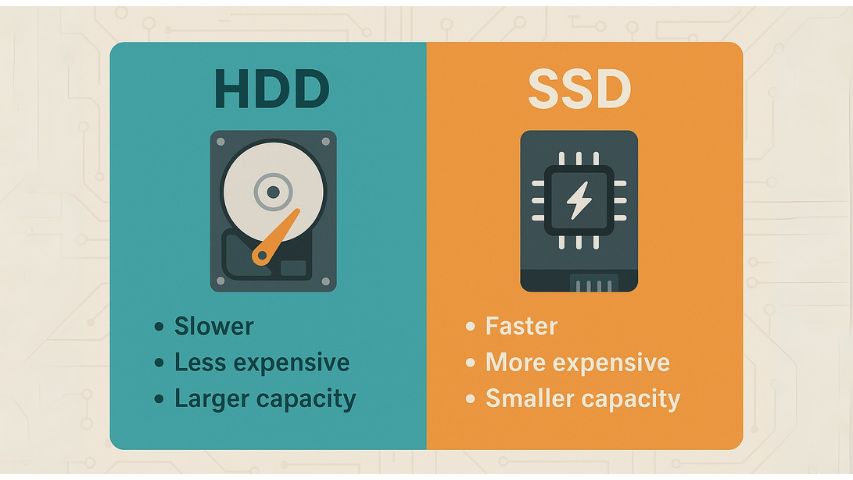
An HDD is a traditional storage device that uses spinning magnetic disks to read and write data. It has a large capacity and is cheaper compared to modern alternatives, but slower because of its moving parts.
- Use Cases: Storing movies, documents, photos, backups, and installing operating systems.
- Example: A 1TB HDD can hold about 250,000 songs or hundreds of HD movies.
2. Solid State Drive (SSD)
An SSD is a modern storage device that uses flash memory instead of spinning disks. It has no moving parts, making it faster, more durable, and reliable than HDDs.
- Use Cases: Storing operating systems, running games, and keeping frequently used apps for quick access.
- Example: A laptop with an SSD can boot in just 10–15 seconds, compared to 1–2 minutes with an HDD.
3. Optical Disks (CD, DVD, Blu-ray)
Optical disks are storage media that use laser technology to read and write data. They were once popular but are less common today due to USB drives and cloud storage.
- Use Cases: Watching movies, listening to music, installing software, and archiving data.
- Example: A standard DVD can hold about 4.7 GB of data—enough for a full-length movie.
4. Cloud Storage
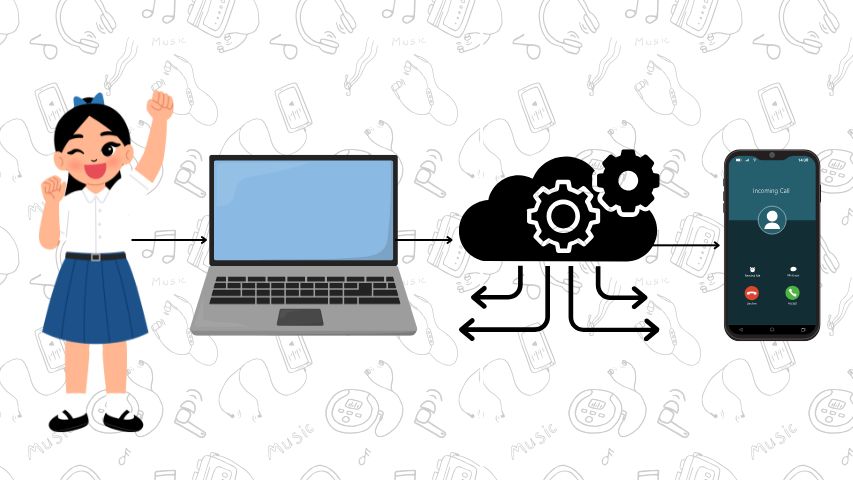
Cloud storage is data stored on remote servers accessed through the internet. It is managed by providers like Google Drive, Dropbox, iCloud, or OneDrive. It is flexible, accessible from anywhere, and helps save local storage space.
- Use Cases: Backing up assignments, collaborating on projects, sharing files, and accessing data across devices.
- Example: A student can upload a PowerPoint presentation to Google Drive at home and later access it at school without carrying a USB drive.
Memory vs Storage – The Key Differences
| Feature | Memory (RAM, Cache, etc.) | Storage (HDD, SSD, Cloud) |
|---|---|---|
| Nature | Temporary, volatile | Permanent, non-volatile |
| Speed | Very fast | Slower |
| Capacity | Smaller (GBs) | Larger (GBs to TBs) |
| Analogy | Notebook | Locker |
| Data Loss | Lost on shutdown | Remains saved |
How Memory and Storage Work Together
Your computer’s true power comes from memory and storage working hand-in-hand.
- Gaming: RAM loads graphics and sound effects instantly; storage keeps game files and progress safe.
- School Project: While typing in MS Word, your essay is in RAM. When you click Save, it moves to storage permanently.
- Streaming: RAM holds video data for smooth playback; storage keeps offline downloads safe.
Future of Computer Memory and Storage
Technology is moving fast! Here’s what’s coming next:
- AI-Enhanced Memory: Smarter cache management.
- Quantum Storage: Using quantum physics for massive data.
- DNA Storage: Storing libraries inside genetic material.
- Cloud-First: More reliance on online storage.
- Ultra-Fast SSDs: NVMe drives that load systems in seconds.
Conclusion – Why It Matters for You
Understanding computer memory and storage is not just for tech experts—it’s for everyone:
- Picking a new laptop means knowing the right RAM and storage.
- Better memory and storage = smoother gaming, faster apps, and no lost files.
- Future careers in IT, AI, and even business will need this knowledge.
So, next time you open your notebook in class, think of it as your RAM. When you safely keep your homework in a locker, think of it as your storage. Computers work the same way—and now you know the secret behind their speed and reliability.